
KIB Network presents:
The Nuclear Option
Special Episode: When You’ve Been Hacked
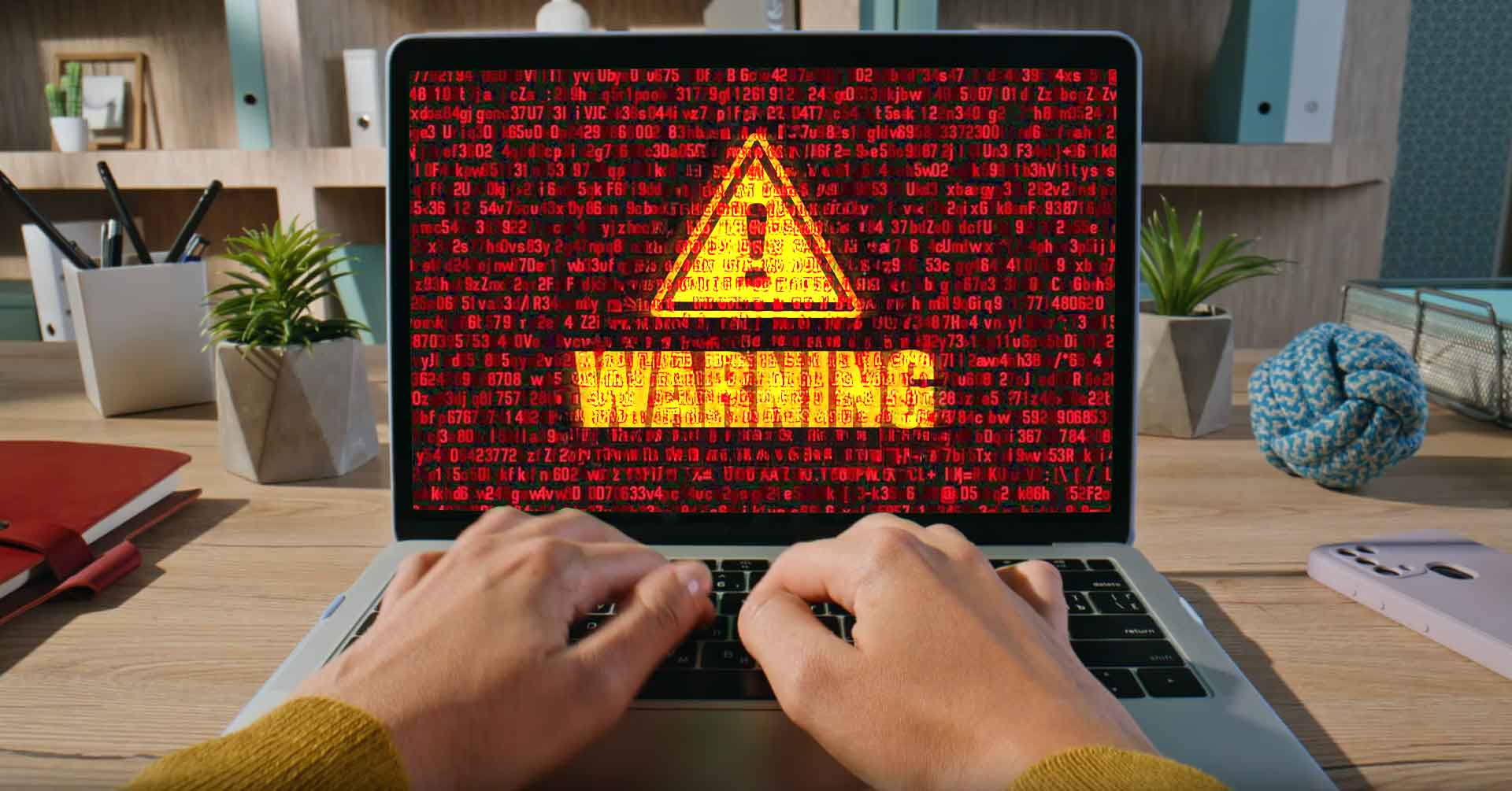
Special Episode: The Nuclear Option – When You’ve Been Hacked
Transcript
Welcome to a special episode from the KIB Network, The Nuclear Option. This episode goes through and actual event when one of our rather tech savvy contributors got hacked.
This story starts with one of our own—a sharp, security-conscious contributor thought they were updating their antivirus software while browsing. It actually looked like a system pop up. The interface looked really official. But within minutes, their system was compromised. Passwords were exposed. Files began misbehaving. Browser redirects fired off like alarms.
They tried scanning. They tried isolating the damage. But the infection ran deep. The only way forward was the nuclear option: a full system reset.
They rebuilt everything from scratch. And in the process, they realized something important. Most people don’t know what to do when they’ve been hacked. They don’t know what a virus really looks like, how fast it spreads, or how to respond when their digital life is under siege.
This episode is about that moment—when panic meets possibility. It’s about what viruses actually are, how they work, and why a full reset is often the safest and smartest move you can make.
We’ll walk through how to spot an infection, what to do immediately, and how to prepare your digital life so that if the worst happens, you’re ready to act.
Here’s what you’ll learn today:
- You’ll get a clear picture of what a computer virus really is — not just the Hollywood version, but the real-world threats.
- You’ll understand why viruses are more than just an inconvenience, and how they can affect your personal safety and finances.
- You’ll hear exactly what to do the moment you suspect your device is infected, so you don’t make the problem worse.
- You’ll learn how to recognize the subtle signs of infection that most people overlook.
- And finally, you’ll see why sometimes the boldest move — wiping your system clean — is the smartest and safest choice.
Let’s get into it.
What is a Computer Virus?
When people hear “computer virus,” they often imagine a screen filled with flashing popups or a machine that suddenly slows to a crawl. But the truth is, viruses are far more sophisticated than that. They’re malicious programs designed with one purpose: to infiltrate your device and exploit it.
Some viruses are like burglars who sneak in quietly and steal your valuables. Others are like vandals who smash windows just to cause chaos. Let’s break down a few of the most common types in plain language:
Rootkits are the deep-cover spies of the malware world. They bury themselves so far into your operating system that you may not even know they’re there. They’re designed to stay hidden while giving attackers long-term access.
Browser hijackers are like pranksters who grab your GPS and reroute you to the wrong place. You think you’re searching for your bank, but suddenly you’re on a fake site designed to steal your login.
Ransomware is the hostage-taker. It locks up your files — photos, work documents, even your entire hard drive — and demands money for their release.
Keyloggers are the silent observers. They record every keystroke you make, from passwords to private messages, and send that information back to the attacker.
Trojans are the tricksters. They disguise themselves as something harmless — maybe a free game or a software update — but once you let them in, they unleash their real payload.
The goal of all of these? To steal your identity, drain your accounts, or even impersonate you to scam your friends and family. And the scariest part is how invisible they can be.
Why is it So Dangerous?
Once your device is compromised, it’s not just your computer that’s at risk — it’s your entire digital life.
Think about what’s stored on your devices: your banking information, your saved passwords, your private conversations, your family photos. If a virus gets in, all of that could be exposed.
And the damage doesn’t stop with you. Some malware uses your accounts to send scam messages to your contacts, making it look like you’re the one asking for money or sharing a dangerous link. Suddenly, your reputation is on the line too.
The recovery process can be brutal. You might need to freeze your credit, call your bank, change dozens of passwords, and spend weeks untangling the mess. And here’s the kicker: some viruses don’t strike right away. They sit quietly, collecting data for months before you even realize something’s wrong.
This isn’t just a tech problem. It’s a personal safety problem.
What to Do Immediately
So let’s say you suspect your device has been infected. What do you do? The key is to act fast and avoid panic. Think of it like first aid for your computer.
First, disconnect from the internet. That’s like shutting the door before the intruder can run off with your valuables. It stops the virus from spreading or communicating with its source.
Next, don’t click on any popups. I know it’s tempting when a window says “Click here to fix your computer,” but that’s often bait. Clicking could make things worse.
Pay attention to strange redirects. If you type in “amazon.com” and end up somewhere sketchy, that’s a red flag. Make a note of it.
Avoid downloading anything new. Even if something claims to be an antivirus tool, if you’re not 100 percent sure it’s legitimate, don’t risk it.
Finally, document the symptoms. Write down what you’re seeing — the crashes, the slowdowns, the weird behavior. That information will help you or a professional figure out what’s going on.
Think of this as digital triage. The faster you act, the more control you keep.
How to Diagnose a Virus
Viruses don’t always announce themselves, but there are some telltale signs.
If your computer suddenly feels like it’s moving through quicksand — slow, unresponsive, freezing up — that’s a warning sign.
If you’re seeing popups when you’re not even browsing the web, that’s another.
Programs crashing for no reason? Suspicious.
Is your internet light blinking like crazy even when you’re not online? That could mean your computer is talking to someone it shouldn’t.
If your browser homepage changes without your permission, or you suddenly have new toolbars or icons you didn’t install, that’s a big red flag.
At this point, it’s time to run a scan. Use the tools built into your system — Windows Defender or macOS XProtect. If you want extra reassurance, a trusted program like Malwarebytes can help. But here’s the caution: don’t just Google “antivirus” and download the first thing you see. Fake antivirus software is one of the oldest tricks in the book.
Bottom line: if something feels off, trust your instincts.
What Options Do You Have?
So, you’ve confirmed you’ve got a virus. What now?
You might start with an antivirus scan, and sometimes that’s enough. But here’s the hard truth: some viruses are designed to survive. They hide in system files, disable your defenses, or reinstall themselves the moment you think they’re gone.
Manual removal is possible, but it’s risky and requires technical expertise. One wrong move and you could damage your system even more. That’s why the nuclear option — a full factory reset or operating system reinstall — is often the smartest move. It’s not just one option among many. It’s the absolute way to guarantee the threat is gone.
But here’s the catch: the nuclear option isn’t for the faint of heart. It takes guts. You’re wiping everything — your files, your apps, your settings — and starting from scratch. It’s disruptive, it’s inconvenient, and it requires preparation. But it’s also decisive. Instead of fighting a hidden enemy for weeks, you clear the battlefield in one bold strike.
Here’s how it works in practice.
Step 1: Back up what matters. Before you reset, safeguard your personal files. That means photos, work documents, tax records, anything you can’t afford to lose. Use cloud services like Google Drive, Microsoft OneDrive, Apple iCloud, or Dropbox, or copy files to an external hard drive. Only back up personal files — not programs or system files — since those could carry the infection.
Step 2: Prepare your bootable USB. This is your reset tool. Start with a flash drive of at least eight gigabytes. Download the installer for your operating system — Windows users can grab Microsoft’s Media Creation Tool, Mac users can download macOS from the App Store, and Linux users can download an ISO file from their distribution’s official site. Then, use the right method to make the USB bootable: the Media Creation Tool on Windows, the createinstallmedia command on Mac, or a utility like Rufus or Etcher for Linux. When you’re done, that little flash drive is no longer just storage — it’s your emergency parachute.
Step 3: Boot from the USB. Plug the drive into your computer, restart, and enter the boot menu by pressing a key like F2, F12, Delete, or Escape as the machine powers on. Change the boot order so the USB comes first. Save your changes, and the system will restart — this time loading the installer from your flash drive instead of the infected hard drive.
Step 4: Run the installation. The installer will guide you through the process. Choose your language, agree to the terms, and select the drive you want to erase. For a true nuclear option, delete the existing partitions and let the installer create new ones. That ensures the virus has nowhere to hide. The installer will then copy over a fresh version of your operating system.
Step 5: Update and restore. Once the installation finishes, remove the USB so your computer boots from its new, clean system. Run all available updates immediately to patch vulnerabilities. Then, carefully restore your personal files from your backup and reinstall your apps.
Step 6: Keep the USB safe. Label it clearly and store it somewhere you’ll remember. If you ever need to reset again, you’ll already have the tool ready.
Now, let’s be honest: not everyone is comfortable with this process. And that’s okay. The nuclear option requires confidence, patience, and a willingness to take the plunge. If you’re not ready to go it alone, professional support is a smart alternative.
Companies like Geek Squad at Best Buy specialize in exactly this kind of work. You can bring in your device, explain the symptoms, and let their technicians handle the reset and reinstall for you. They’ll back up your files, wipe the system, reinstall the operating system, and hand it back to you clean and ready. Other certified computer repair shops offer similar services, often with the added benefit of one‑on‑one advice about keeping your system safe in the future.
So here’s the bottom line: the nuclear option is the absolute way to eliminate a virus. It’s bold, it’s final, and it works. But it comes with risks — you need to prepare, you need to back up, and you need the guts to follow through. If you’re ready, you can do it yourself with a bootable USB. If you’re not, there are professionals who can do it for you. Either way, the result is the same: a clean slate, a safe system, and the peace of mind that the threat is gone.
How to Always Be Ready
Here’s the part most people overlook: preparation. The nuclear option only feels scary if you’re not ready for it.
If you back up your data regularly, a reset becomes just another step in your digital hygiene. And one of the easiest ways to do that is by relying on cloud storage. Cloud services automatically save your files to secure servers online, which means even if your computer is completely wiped, your documents, photos, and projects are still safe and accessible.
Some of the most popular and reliable options include:
- Google Drive — integrates seamlessly with Gmail and Google Docs, making it a natural choice if you’re already in the Google ecosystem. It offers free storage to start, with affordable upgrades.
- Microsoft OneDrive — built right into Windows and tightly connected with Office apps like Word, Excel, and PowerPoint. If you’re a Microsoft 365 subscriber, you already have a terabyte of storage waiting for you.
- Apple iCloud — perfect for those who live in the Apple world. It automatically backs up photos, messages, and files across iPhones, iPads, and Macs.
- Dropbox — one of the pioneers of cloud storage, known for its simplicity and strong file-sharing features. It’s a great option if you collaborate often.
- Box — popular with businesses and teams, offering advanced security and collaboration tools.
The beauty of cloud storage is that it works quietly in the background. You don’t have to remember to drag files over to an external drive — your important data is just there, ready when you need it.
That said, it’s smart to combine cloud storage with a physical backup, like an external hard drive. Think of it as a belt-and-suspenders approach: if one fails, the other is still there.
The reason people hesitate to reset is fear of losing something important. But with a solid backup system — both in the cloud and locally — that fear disappears. You can hit reset with confidence, knowing your files are safe.
Being prepared means being empowered. When a virus strikes, you won’t panic. You’ll reset, recover, and move forward.
Conclusion
We live online. Our photos, our finances, our conversations — they’re all digital now. Protecting your device is protecting your life.
Viruses are scary, but knowledge is your shield. And sometimes, the best defense is a clean slate. So if the worst happens, don’t panic — just nuke that computer virus.
Disclaimer
This episode is for educational purposes only. The content shared here is not a substitute for professional cybersecurity advice. Always consult a qualified professional for specific concerns.
The Nuclear Option: Why Resetting Your Computer May Be the Safest Move
Computer viruses are often misunderstood. Many people think of them as nothing more than annoying popups or a sluggish laptop. In reality, they are malicious programs designed to infiltrate your device, steal your data, and sometimes take complete control of your system.
What a Computer Virus Really Is
A virus is not a single type of threat but a family of malicious software that can take many forms. Rootkits bury themselves deep in your operating system, making them nearly invisible. Browser hijackers redirect your searches to unsafe websites. Ransomware locks your files and demands payment for their release. Keyloggers silently record every keystroke, capturing passwords and private messages. Trojans disguise themselves as safe software, tricking you into installing them.
The goal of these programs is simple: to steal your identity, drain your accounts, or impersonate you to scam others. They are designed to be sneaky, often scanning your files, watching your keystrokes, and redirecting you to even more dangerous downloads.
Why Viruses Are So Dangerous
Once your device is compromised, your personal information is at risk. That includes banking details, saved passwords, private conversations, and family photos. Some malware even uses your accounts to send scam messages to your contacts, damaging your reputation in the process.
The recovery process can be long and stressful. Victims often need to freeze credit, contact banks, change dozens of passwords, and spend weeks untangling the mess. To make matters worse, some viruses do not strike immediately. They sit quietly, collecting data until the damage is already done. This is not just a technical issue. It is a personal safety issue.
What to Do Immediately
If you suspect a virus, speed matters. Disconnect from the internet right away to stop the malware from spreading or communicating with outside servers. Do not click on popups, even if they claim to offer a fix. Pay attention to strange redirects in your browser and avoid downloading anything new. Document the symptoms you notice, such as crashes, slowdowns, or unusual behavior. Think of this as digital first aid. The faster you act, the more control you keep.
How to Recognize an Infection
Viruses do not always announce themselves, but there are warning signs. A computer that suddenly becomes sluggish or unresponsive may be infected. Frequent popups, programs crashing without explanation, or unusual network activity are all red flags. If your browser homepage changes without your permission or you see new icons you did not install, something is wrong.
At this point, run a scan. Use built‑in tools like Windows Defender or macOS XProtect. Trusted third‑party programs such as Malwarebytes can also help, but be careful not to download fake antivirus software. If something feels off, trust your instincts.
The Nuclear Option
Antivirus scans and file isolation can help, but some viruses are designed to survive. They hide in system files, disable your defenses, or reinstall themselves the moment you think they are gone. That is why the nuclear option, a full factory reset or operating system reinstall, is often the only way to be certain.
The nuclear option is not for the faint of heart. It wipes everything. It is disruptive and requires preparation. But it is also decisive. Instead of fighting a hidden enemy for weeks, you clear the battlefield in one bold strike.
Here is how to do it:
Step 1: Back up your files. Save only personal documents, photos, and important records to an external hard drive or a trusted cloud service such as Google Drive, Microsoft OneDrive, Apple iCloud, or Dropbox. Do not back up programs or system files, since they may carry the infection.
Step 2: Create a bootable USB. Use a flash drive with at least eight gigabytes of space. Download the installer for your operating system. Windows users can use Microsoft’s Media Creation Tool, Mac users can download macOS from the App Store, and Linux users can download an ISO file from their distribution’s official site. Use the appropriate method to make the USB bootable.
Step 3: Boot from the USB. Insert the drive, restart your computer, and enter the boot menu by pressing a key such as F2, F12, Delete, or Escape. Change the boot order so the USB comes first.
Step 4: Reinstall the operating system. Follow the prompts in the installer. For a complete reset, delete existing partitions and let the installer create new ones. This ensures the virus has nowhere to hide.
Step 5: Update and restore. Once the installation is complete, remove the USB and let the computer boot from its new system. Run all updates immediately. Then restore your personal files from your backup and reinstall your apps.
Step 6: Keep the USB safe. Label it clearly and store it somewhere secure. It is now your emergency tool for the future.
Professional Support
Not everyone feels comfortable taking these steps alone, and that is perfectly reasonable. The nuclear option requires confidence and patience. If you would rather not take the risk, professional services are available. Companies like Geek Squad at Best Buy and other certified repair shops can handle the process for you. They will back up your files, wipe the system, reinstall the operating system, and return your device clean and ready. It may cost more than doing it yourself, but it provides peace of mind.
How to Always Be Ready
Preparation makes the nuclear option far less intimidating. Regular backups are the key. Cloud storage services such as Google Drive, Microsoft OneDrive, Apple iCloud, Dropbox, and Box can automatically save your files. Combining cloud storage with an external hard drive gives you two layers of protection. With a solid backup routine, you will never hesitate to reset.
Conclusion
We live in a digital world where our photos, finances, and conversations are all online. Protecting your device is protecting your life. Viruses are dangerous, but knowledge is your shield. And sometimes the best defense is a clean slate. If the worst happens, do not panic. Reset, recover, and move forward with confidence.
Disclaimer
This episode is for educational purposes only. The content shared here is not a substitute for professional cybersecurity advice. Always consult a qualified professional for specific concerns.